
Teamspaces are dedicated spaces in Zoho CRM that teams can work and collaborate in. A single CRM organization can have multiple teamspaces based on functions, locations, projects, and so on.
Examples of teamspaces based on business functions include sales, marketing, operations, legal, and so on.
Examples of industry-specific teamspaces could be:
- Construction and development (for real estate)
- Transportation, warehouse, and procurement (for logistics)
- Supply chain management, QA/QC, and Maintenance (for manufacturing)
- Risk management and underwriting (for finance organizations)
- Food and beverage, events and entertainment, and guest relations (for hospitality-related businesses)
Each teamspace has the members of a team along with the modules that are relevant for that team’s work. It also has a teamspace admin who manages that teamspace by adding/removing CRM users and modules.
For example, a marketing teamspace could have:
- The marketing manager as teamspace admin
- Product marketers, content marketers, social media marketers, marketing analysts, interns, and so on as teamspace members.
- Leads, Campaigns, Social, Ads, Case Studies, Win/Loss Analysis, Competitor Analysis, etc. as modules
How can Create a teamspace
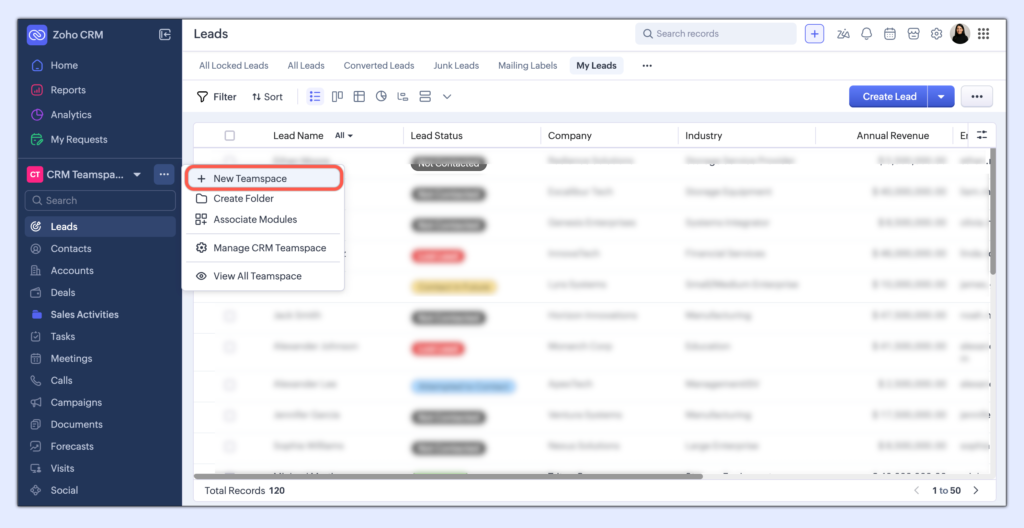
1.Click the teamspace switcher at the sidebar and click + New Teamspace.
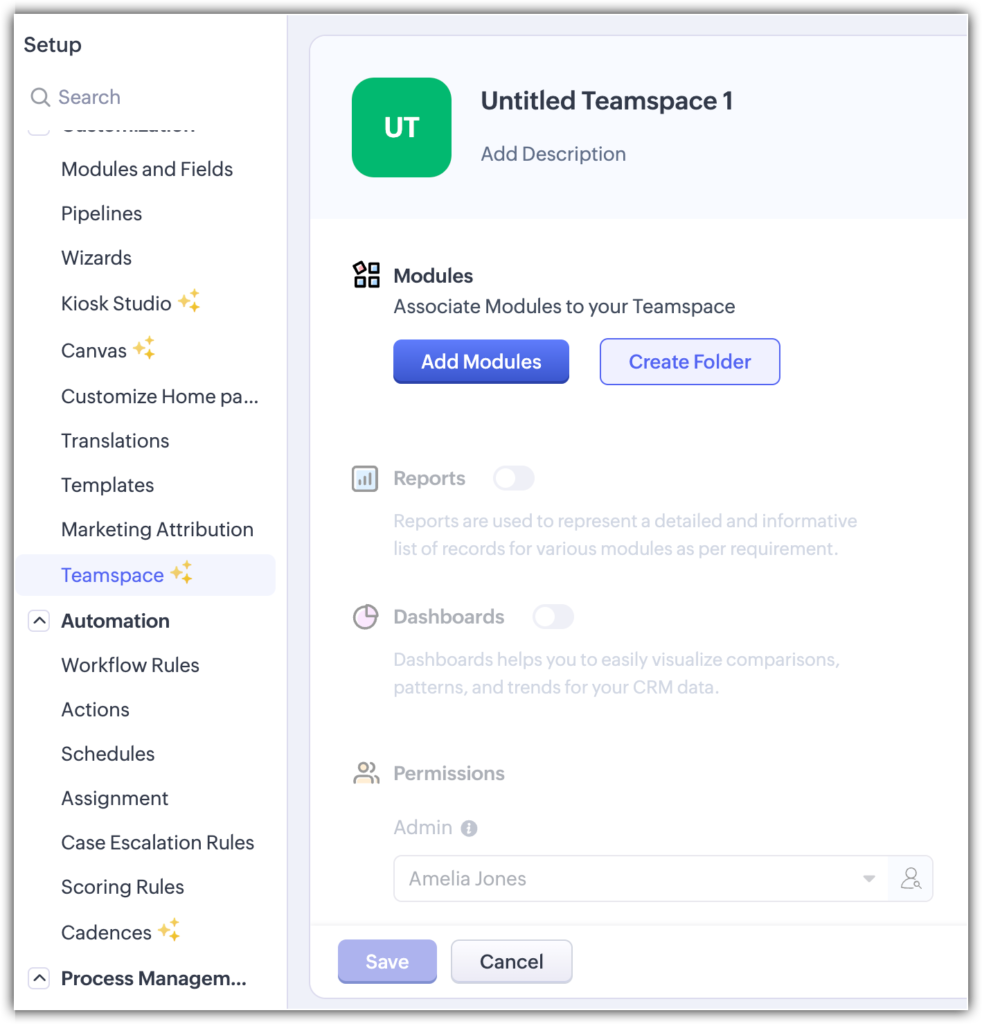
2.In the Create New Teamspace page, Click on the teamspace to set an icon. Enter the name of the teamspace and give it a description.
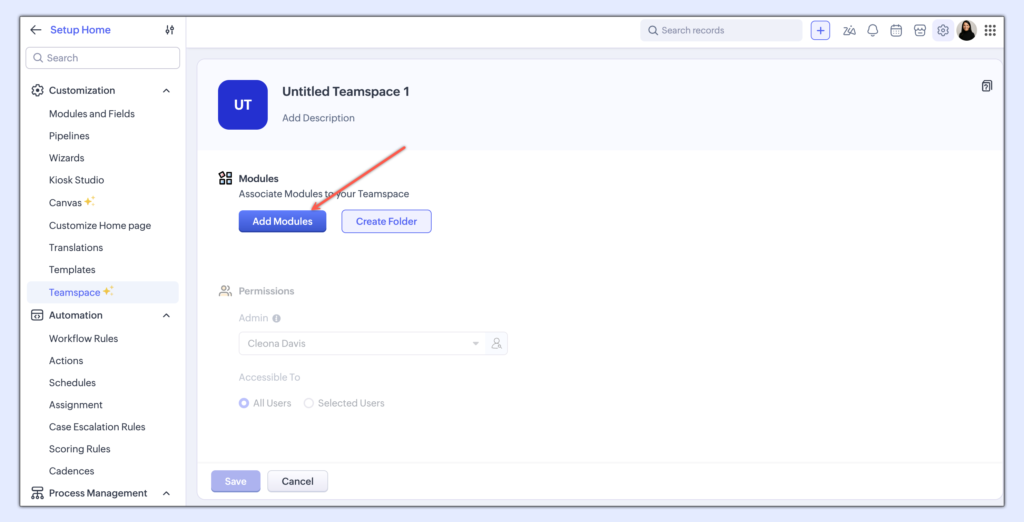
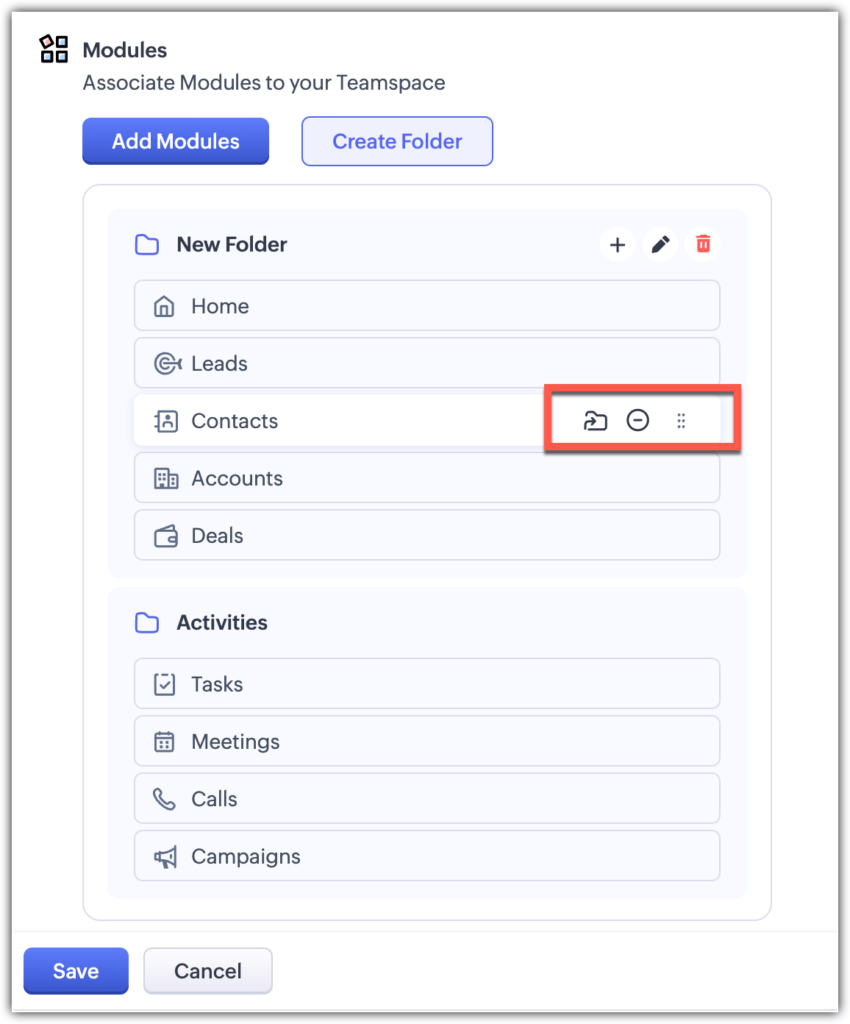
3.Click Add Modules. In the popup that appears, select the modules for your teamspace and click Add.
4.In the same popup, click Create Folder to create a folder. Add a folder name and click Create.
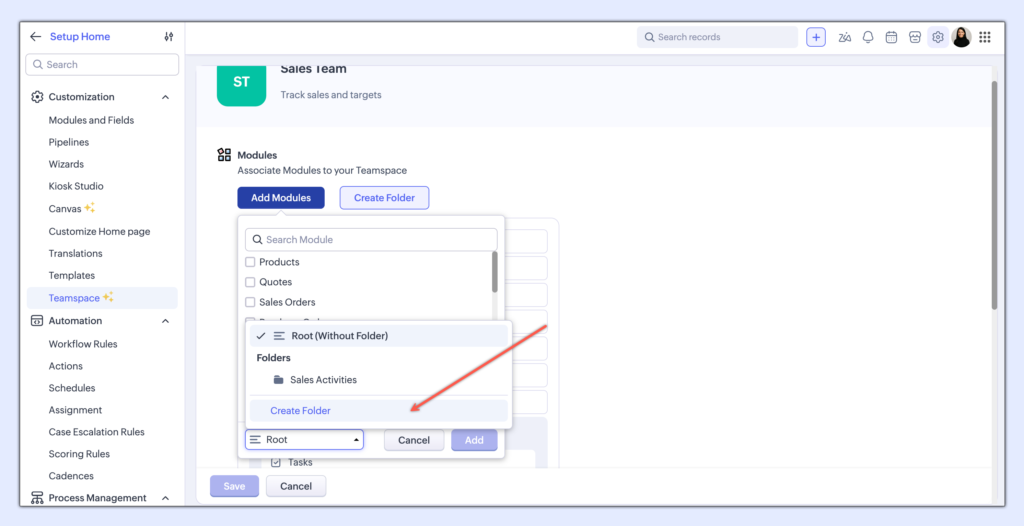
Once created, you can select the folder when you add modules.
5.You can also rearrange modules, move them to another folder, and remove them in this space.
6.Select the teamspace admin. This person will be able to manage the teamspace going forward. This can be any CRM user.
7.Manage access to the teamspace by either making it available for all users or for selected users.
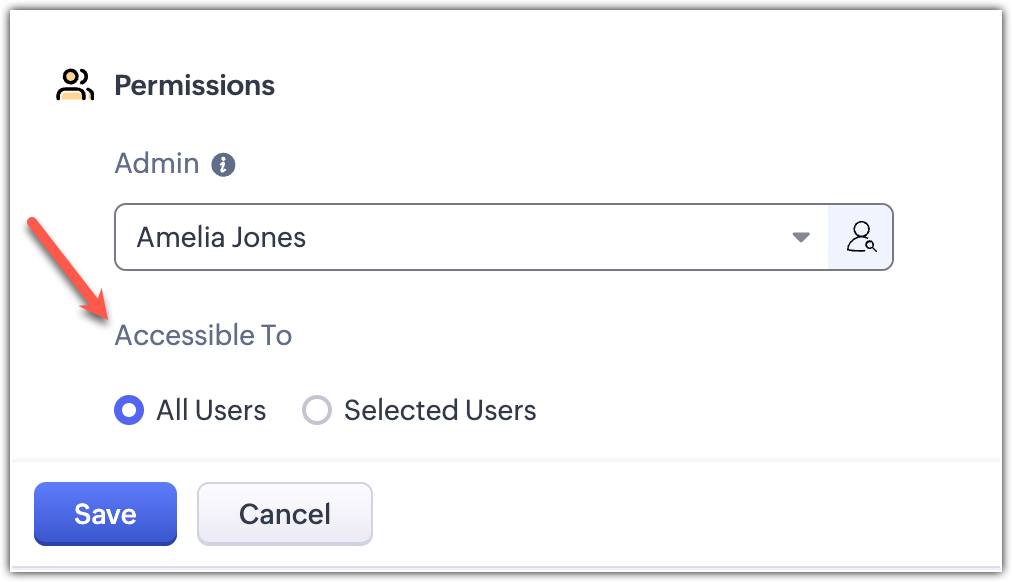
In case you’ve chosen the latter, you can add users, roles, profiles, and groups to the teamspace and click Save.
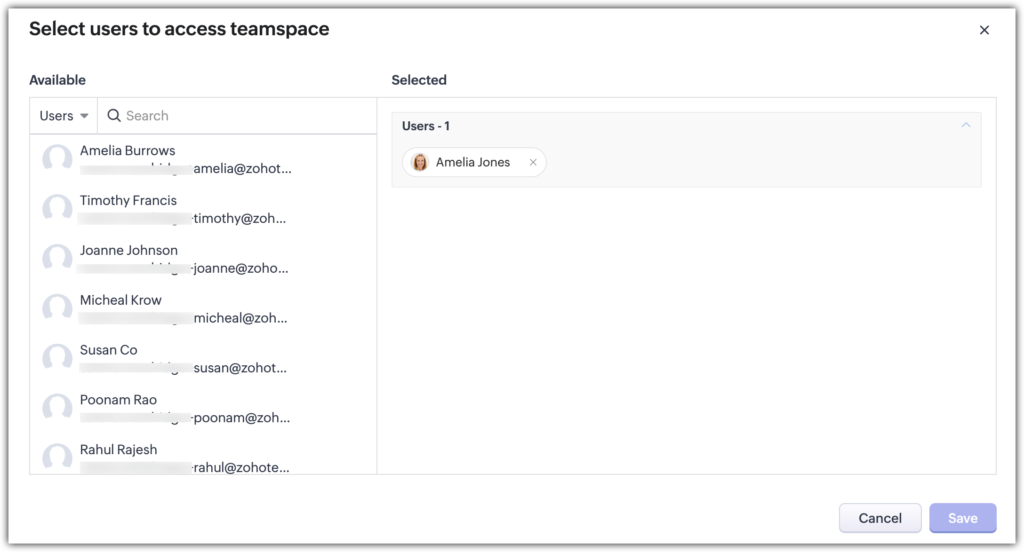
Please note that the teamspace admin will not be added automatically when you choose selected users.
8.Click Save.You’ve successfully created a brand-new teamspace!
You can also create a teamspace by navigating to Setup > Customization > Teamspace and clicking Create Teamspace.You can view the modules present in a teamspace by navigating to Setup > Customization > Teamspace. In a teamspace card, click the info icon.
Reorder teamspaces
- Click the teamspace switcher in the sidebar.
- Click View All Teamspace.
- In the Create your own Teamspace page, click the reorder icon and drag the teamspace to the required location. The order is from left to right, top to bottom.
Switch teamspaces
If you are a member of multiple teamspaces, you can easily switch to another teamspace by:
- Clicking the teamspace switcher in the sidebar.
- Selecting the teamspace you want to switch to.
Add or remove users/modules in an existing teamspace
- Click the teamspace switcher in the sidebar.
- Hover over the teamspace you want to add users to and click the edit icon.
- In the Edit Teamspace page, click + Add Modules.
- In the popup that appears, select the org modules for your teamspace, select the folder, and click Add.
- In the Admin & Permissions section, manage access to the teamspace by either making it available for all users or for selected users.
- In case you’ve chosen selected users, you can add users, roles, profiles, and groups to the teamspace and click Save.
- Click Save to save the changes to your teamspace.
Edit a teamspace
- Click the teamspace switcher in the sidebar.
- Hover over the teamspace you want to add users to and click the edit icon.
- Make the necessary changes in the Edit Teamspace page.
- Click Save.
Delete a teamspace
- Click the teamspace switcher in the sidebar.
- Hover over a teamspace and click the delete icon.
- In the Delete Teamspace popup, click Yes, delete.
Feel free to contact us for any additional information or assistance.